I am sure that it happens with everyone that we try hard to remember the birthdays and anniversaries but no matter what we attempt; we eventually unable to summon it up at the precise moment. I recall that I used to have a software that used to show whose birthday it is that day as soon as I switch my desktop on. It had a batch file that used to run before windows start. It was neat and I never forgot any birthday but that was me. We are so busy these days that I have seen people leaving themselves note, writing on sleeves and even asking friends to remind but nothing really work 100%
People might argue that now a days everyone is on Facebook and we get to know when someone’s birthday is, yes its true but,
-
Does it tell anniversaries ?
-
Is your granny on Facebook ?
-
Does it tell you it in advance so that you can actually plan for a big party for your loved ones ? I don’t think so.
The method I am going to describe below come close to 100% mark, it just needs initial time investment and then upgrades whenever required.
What do you need – A Google account (Gmail), A cellphone and little time and patience.
Step – 1
Collect all important Info
Collect birthdays and anniversaries of all those people who you care about and do not want to forget their important dates next time.
Step – 2
Setup the device to get alerts
1. Go to http://calendar.google.com/
2. Click the gear button on top right corner,

3. Go to Settings.
4. Go to Mobile Setup Page,

5. Select your country,
6. Enter mobile number,
7. Select your carrier from the drop-down menu (This might not work for all Carriers)
8. Click Send verification code.
9. You will get text on your phone with a code
10. Enter the code you received in the Verification code field on the webpage.
11. Click the Finish setup button
12. Click Save
Step – 3
Setup the reminder
1. Click on the Create button on top left

2. Following screen will be loaded
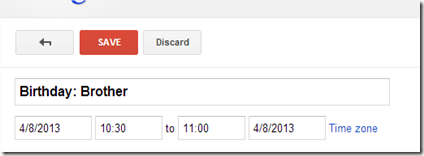
3. Now add the Title for the event, maybe “Birthday: Brother” Or “Anniversary: Parents”


4. Set the date and Time (Time is when your event is active and you will get reminders based on this time)

5. Select Repeat

6. Following Pop-up box will open,

7. For anniversaries and Birthdays you need to set following values,
a. Repeats: Yearly
b. Repeat Every: 1
c. Click Done
8. Now Come to Reminders and set reminders to get Email and SMS according to your preference,

a. You can set maximum of 5 reminders
b. There are three types,
i. SMS – You will get a reminder text on cell
ii. Email - Reminder email on Gmail account
iii. Pop-up – Pop-up reminder on desktop (Only when Gmail/Calendar running in background on Chrome)
c. You can set any value in the 2nd column boxes. You can set reminders a week or 2 in advance so that you can plan for that surprise party for the Birthday or Anniversary which you were missing out on previous occasions.
d. And next column gives you options on Unit of time
i. Minutes
ii. Hours
iii. Days
iv. Weeks
You can play around with these options and create yourself loads of innovative reminders like,
# Fertilizer the plants (Every month on first Sunday)
# Get Car Serviced (6 Months once)
# Take Backup (Every Fortnight)
9. Press Save and you are Done,
Now you will never forget any important date 
Please let me know if you have any questions.


